Vertical Video Editing Guide: Reframe, Caption, and Pace for 9:16
Convert existing footage into strong vertical edits without treating aspect ratio as a simple crop.
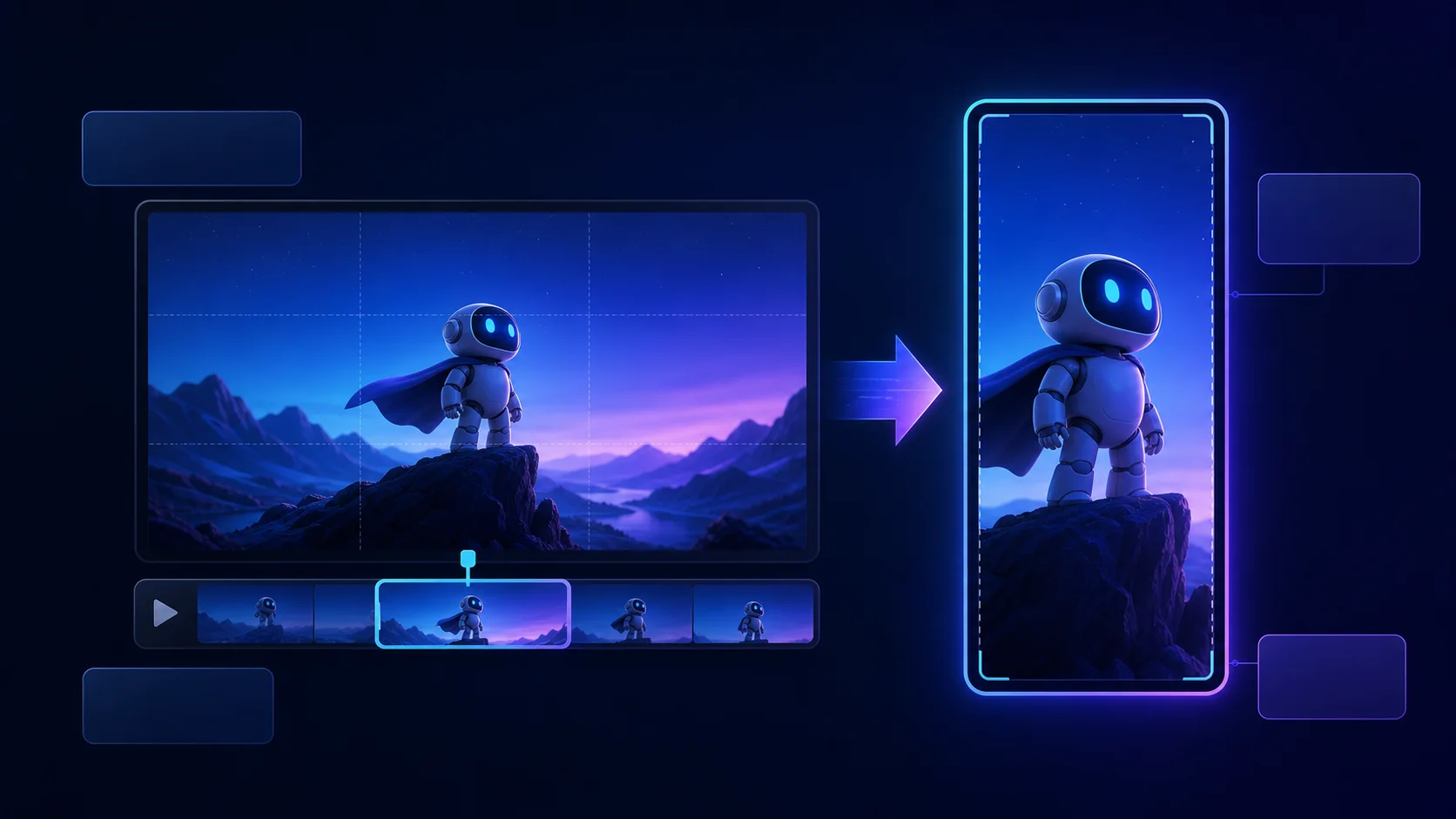
Practical shortcut: use Reeloft’s free video cropper to prepare the file privately in your browser.
A strong vertical version is a new composition, not a rectangle cut from the middle of a horizontal frame. The active subject, captions, overlays, gestures, and visual rhythm all need to work inside a narrow mobile canvas.
AI can apply a 9:16 canvas and reframe segments, but every shot still deserves review. A crop that works while one speaker is centered may fail when the camera changes, a second person responds, or a product appears near the edge.
Tell AI what to edit
Upload your footage, describe the changes you want, and watch Reeloft edit your video while the timeline remains available for manual control.
Choose the vertical story before the crop
Short vertical viewing rewards a clear entry point. Remove setup that belongs only to the long version and keep the minimum context required for an honest, coherent story. The aspect ratio should serve that edit, not determine it.
Decide what must stay visible: a face, two speakers, hands, a product, a screen recording, or text already inside the source. Those priorities guide whether a fill crop, a repositioned subject, or a different layout is appropriate.
Reframe shot by shot
Fill crop removes horizontal space and enlarges the remaining image. It works when the essential subject fits inside the narrow frame. Reposition each segment so the focal point remains visible, and check movement from the first frame through the last.
Multi-person scenes need special care. Centering the overall image may place both people at the edges. Follow the active speaker when possible, or preserve a wider composition when the interaction itself matters.
- Check faces, hands, products, and on-screen demonstrations
- Review after every camera or scene change
- Avoid constant reframing that creates distracting movement
- Keep enough headroom for captions and title overlays
Design captions for a phone
Vertical captions need shorter lines and fewer words per group. Use strong contrast and position them above likely interface controls. Preview the clip at phone scale to see whether reading competes with the subject.
If the video also uses hook text, a logo, or a call to action, establish a hierarchy. Do not stack every element in the same central area or cover the speaker’s mouth with the most animated caption style.
Adjust pacing for short-form viewing
Lead with the clearest value, tension, or result available in the footage. Remove repetition and long transitions that were useful in a full presentation. Preserve pauses that create emphasis or help the viewer absorb a complex idea.
A fast edit is not automatically engaging. If every breath and reaction disappears, the clip can feel synthetic. Watch the complete sequence at normal speed and restore room where ideas collide.
Useful vertical-editing prompts
- Create a separate 9:16 version and keep the original project unchanged.
- Reframe each shot around the active speaker.
- Keep the product and the speaker’s hands visible during the demonstration.
- Add concise captions and place them above the bottom safe area.
- Remove setup that only matters in the long version.
- Keep the voice clear and lower the existing music under speech.
Common vertical-video mistakes
- Using one static center crop for the entire source
- Cutting off hands, products, slides, or a second speaker
- Placing captions under platform interface controls
- Keeping long horizontal caption lines in a narrow frame
- Adding hook text that competes with the spoken captions
- Removing so much context that the result becomes misleading
- Replacing the horizontal source instead of making a new version
Final review checklist
- The opening communicates value immediately
- Every shot keeps its essential subject visible
- Caption groups are short, accurate, and high contrast
- Text remains clear of faces, products, and interface controls
- The edit feels purposeful rather than merely faster
- Voice and music remain balanced on a phone speaker
- The horizontal source project is still intact
Frequently asked questions
Is vertical editing just a center crop?
No. A center crop may hide a moving subject, second speaker, product, or demonstration. A strong vertical edit begins with a focused story, then reframes each shot around what matters and reorganizes captions and overlays for the narrow mobile canvas.
Should I replace my horizontal project with 9:16?
Create a derived vertical project when you want an alternate destination or substantially different composition. Keeping the horizontal source protects the original framing and lets you produce more versions without rebuilding the long-form edit.
How do I handle two speakers in a vertical frame?
Follow the active speaker when the conversation remains understandable, but preserve both participants when reactions or interaction matter. Avoid rapid automatic motion between faces. Review every camera change and use manual adjustments when a single rule creates distracting movement.
Where should hook text and captions go?
Establish a clear hierarchy and keep both inside safe areas. Hook text should be brief and should not compete with spoken captions or cover the subject. Check the brightest and busiest shots, because a position that looks clean on one frame may fail later.
Can a screen recording work in a vertical layout?
Yes, but shrinking a full desktop screen into 9:16 can make details unreadable. Focus the composition on the active region, divide the demonstration into understandable views, and preserve enough context to show where the action occurs. Preview text and controls at actual phone size.
Keep learning
Tell AI what to edit
Upload your footage, describe the changes you want, and watch Reeloft edit your video while the timeline remains available for manual control.