Standard vs. Hybrid vs. Full AI: 3 Ways to Turn Property Photos into Video
Compare three ways to turn real estate photos into video: original-photo Standard Motion, selective Hybrid, and Full AI shots. Choose the right mode for your listing.
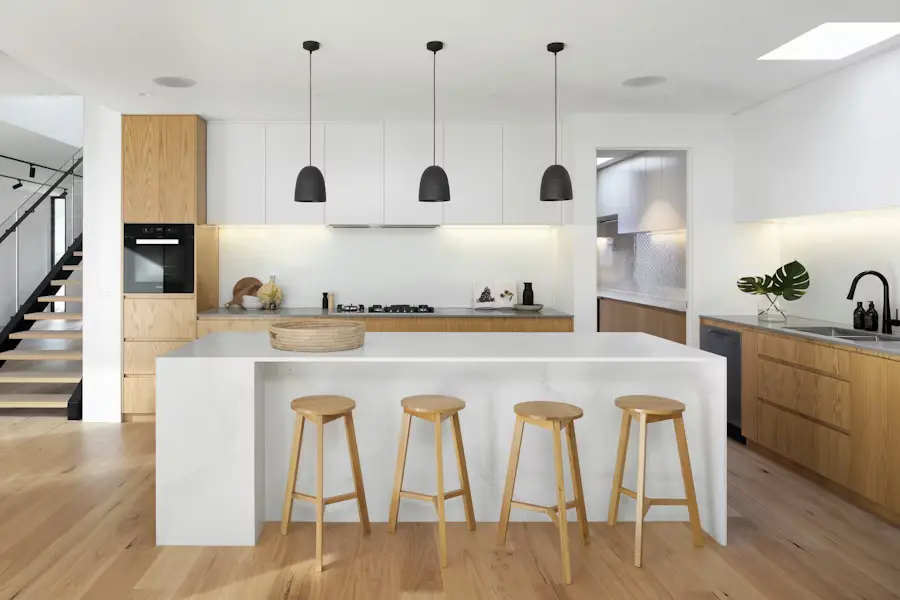
You do not need a second property shoot to make a listing video. The photos already approved for your listing can become a sequence with movement, music, text, and agent branding. The important choice is how those photographs become moving shots.
Reeloft offers three approaches: Standard Motion moves the original photo without generative AI animation; Hybrid combines Standard with selected AI shots; Full AI applies AI movement to every eligible scene. Choose according to how closely you want the motion to stay tied to the source image and how much generated movement you want to review.
Choose how your property photos move
Create a listing video with Standard, Hybrid, or Full AI, then add music and your own branded finish.
The three photo-to-video modes at a glance
The choice changes how shots move, not whether you can finish the video. All three approaches can be combined with music, captions, narration, and branding in an editable project.
- Standard: original photography with smooth zooms and slides. Use it when preserving the photographed scene is the priority.
- Hybrid: Standard Motion for the sequence, with AI movement on selected key scenes. Use it for a restrained mix of reliable photo motion and cinematic highlights.
- Full AI: AI camera movement across eligible shots. Use it when a more expressive treatment is worth the additional visual review.
1. Standard Motion: original photos with no AI distortion
Standard creates motion by zooming into, zooming out of, or sliding across an existing photograph. It does not ask a generative video model to invent the next view of the room. A window, countertop, or doorway stays part of the same source image throughout the shot.
This is the meaning of 100% original photography in Standard Motion: no generative AI is used to animate or reconstruct the scene. It is useful for interiors with distinctive fixtures, detailed cabinetry, repeating railings, or other features you want to show exactly as photographed.
The final frame can still be cropped or enlarged to fit a vertical, square, or landscape video. Standard cannot reveal what is behind a wall or create an orbit around an island from a flat image. Review the framing so important features remain visible, especially when turning a wide room photograph into a vertical Reel.
2. Hybrid: selected AI highlights, Standard for the rest
Hybrid combines the two types of movement in one property video. Reeloft analyzes the photos after generation begins, selects key scenes for AI movement, and uses Standard Motion for the remaining shots. The AI allowance depends on the number of photos; automatic selection can use fewer AI shots when a scene is unsuitable.
Imagine a sequence that opens on the exterior, introduces the main living area, shows the kitchen and bedrooms, and finishes on the terrace. Hybrid can give selected highlights a more cinematic treatment while keeping the rest of the sequence based on the original images. The actual selection depends on the source photos and the generated plan.
Review every AI shot against its source. Look at straight edges, door and window positions, reflections, furniture, and the view outside. Hybrid reduces the number of generated shots to inspect compared with an all-eligible-scenes AI treatment, but it does not make those generated shots immune to visual changes.
3. Full AI: generated movement across eligible shots
Full AI uses AI-generated camera movement for every eligible photograph. It suits a campaign where motion is a major part of the creative treatment and you can spend time reviewing how each room is represented.
Eligible is an important distinction. A scene that should not receive generative movement, such as a floor plan, can remain in Standard Motion. Full AI does not mean every source image is forced through the same animation treatment.
Generated movement can introduce details or alter geometry that was not present in the original photograph. Compare the full clip, not just its opening frame. A scene can begin accurately and change as the camera moves. Revise or replace any shot that misrepresents the property before it enters your final export.
How to choose a mode for your next listing
The modes also use credits differently. Standard has rendering credits without an AI-shot charge. Hybrid includes a photo-count-based allowance, charged even if automatic selection uses fewer AI shots. Full AI reserves an AI slot for each photo. Check the generation estimate for your photo count and output resolution rather than assuming every mode costs the same.
- Choose Standard when the brief calls for faithful photo presentation, restrained movement, or no generative AI animation.
- Choose Hybrid when you want selected cinematic moments while keeping much of the video anchored to original-photo motion.
- Choose Full AI when you want movement across eligible scenes and can review the generated result carefully.
- For a photographer's client delivery, agree on the motion treatment before generating. An original-photo video and an AI-animated video are different creative deliverables.
A practical photo-to-video workflow
Prepare a clear property story
Upload the exterior, main living spaces, bedrooms, amenities, and detail photos you want to include. Remove near-duplicates and choose an opening image that makes the listing easy to understand. Arrange the sequence before generating.
Choose the motion and presentation
Select Standard, Hybrid, or Full AI. Choose the video format, music, optional narration, and agent branding. For a vertical social video, pay particular attention to how wide photos will be framed.
Review, finish, and distribute
Watch every scene, read the listing text, and check the contact details. Refine the editable project and render the final version. You can then download it or open Publish to channels to prepare posts for connected social platforms.
Frequently asked questions
Can I make a real estate video without AI-generated visuals?
Yes. Choose Standard Motion to animate your original photographs with zooms and slides instead of generative AI video. You can still add music, text, transitions, and branding.
Does Hybrid always use the full AI-shot allowance?
No. The automatic plan can select fewer AI shots based on the photos. The Hybrid allowance is still charged as quoted, so check the estimate before generating.
Is Full AI the same as a filmed property walkthrough?
No. It is generated movement based on still photos. It should be reviewed as an interpretation of those images, not treated as a continuous camera recording of the property.
Can I edit the result after choosing a mode?
Yes. Reeloft creates an editable project so you can refine the sequence, text, audio, and branding before the final render.
Keep learning
Choose how your property photos move
Create a listing video with Standard, Hybrid, or Full AI, then add music and your own branded finish.